
I got into a discussion thread on Bluesky where the use of Teams/ Outlook/ Sharepoint and Calendar was being discussed. One of the questions that got asked was about sharing and delegating calendars in Outlook. I was going to reply directly when I realised that it might be easier to write up a short post and share the link rather than post all the screenshots into the chat thread.
Outlook lets you share any calendar to others in your organisation and set what they can do with it. I normally use the online interface for the calendar, so the screenshots below are from there rather than the Windows desktop client.
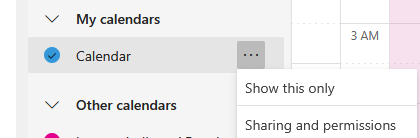
Head on over to the online portal at: https://outlook.office.com/calendar/view/workweek and it will ask you to log in and take you to the working week view of your calendar. On the left, half way down, you’ll see the list of calendars. You can easily share any calendar listed under My calendars there by right clicking on the 3 dots menu (…) that shows up when you hover the mouse around the calendar you want to share, and selecting “Sharing and permissions”.
This brings up the current sharing setup and allows you to see who has access, and of what kind. At a minimum, you probably want to have a basic setting to let everyone in your organisation see when you’re busy (so that they know if you’re not available at a time when they want to meet you).
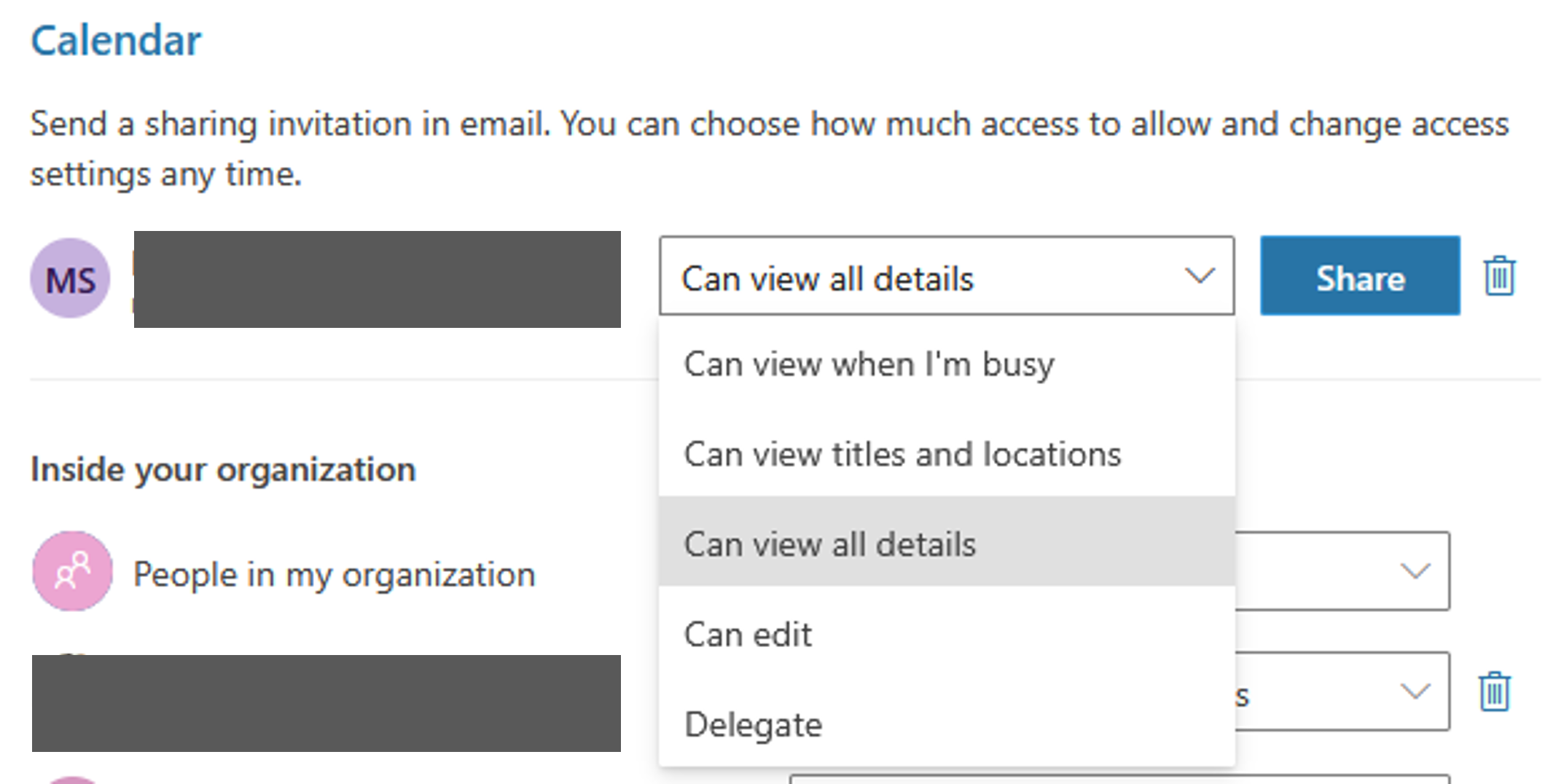
You can enter an email address and it will ask you what permissions you want to allow them.
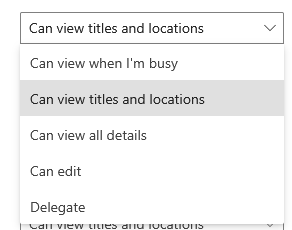
Most of the options are obvious enough:
- Can view when I’m busy: this shows them no details, just that you have something in your calendar at that time.
- Can view titles and locations
- Can view all details
- Can edit: this lets them make changes
- Delegate: this is a special setting, described below
With these, you have some flexibility in how your calendar is visible to and handled by others. The special setup is Delegate which allows them to act on your behalf. The description is as below.
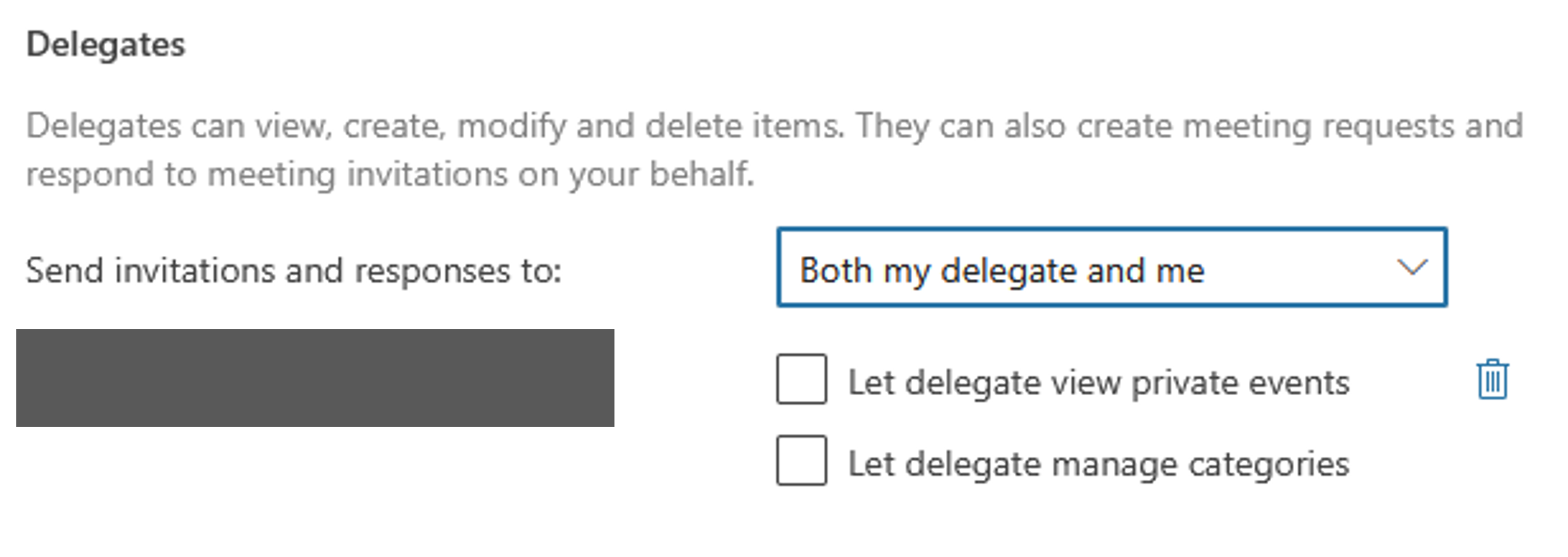
When assigning delegates, you can allow all calendar invitations to be sent to them also in addition to you – this helps them manage your calendar better. Also, you can let them see the details of private events if they are also helping you with personal stuff, e.g., making sure that your kid’s recital is in the calendar.
Hope this helps! I’d suggest that if these look like they work for you, find someone you trust in the organisation and try the settings together with them to make sure that you understand these before you start using them en masse.
If you’ve seen earlier posts, you’ll know that I am quite excited by using calendars, etc. for managing time and travel better. Earlier posts are here:
Feel free to connect or share the post (you can tag me as @onghu on X or on Mastodon as @onghu@ruby.social or @onghu.com on Bluesky to discuss more).